
Shopify gives store owners something that marketplaces like Amazon and eBay generally don't: far more control over how their products are presented.
You can choose your own theme, product photography style, backgrounds, and gallery layout. There are no universal rules requiring every main product image to have a white background.
But that freedom comes with responsibility.
Shopify won't necessarily stop you from uploading oversized images, mixing inconsistent photography styles, or creating product galleries that leave customers confused.
A professional-looking store needs more than attractive photos. Its images should accurately represent the products, load efficiently, and help shoppers understand what they're buying.
Here's how to get those details right.
1. Shopify Image Requirements vs. Best Practices
The first thing to understand is that what Shopify allows isn't necessarily what you should upload.
Shopify accepts product and collection images up to 5000 × 5000 pixels, or 25 megapixels, with individual files smaller than 20 MB.
These are technical limits, not recommended dimensions.
A 5000 × 5000 image contains 25 million pixels. A 2048 × 2048 image contains approximately 4.2 million.
That's almost six times as many pixels.
For most standard product galleries, customers won't benefit from all that additional resolution. Larger originals can also take longer to upload, require more storage, and increase processing requirements.
However, Shopify's CDN automatically generates appropriately sized image versions. Uploading a 5000-pixel image doesn't mean every visitor downloads the full original.
The practical approach is to use enough resolution to show the product clearly without making every image unnecessarily large.
2. What Is the Best Image Size for Shopify?
For square product photography, 2048 × 2048 pixels is a reliable starting point and Shopify's recommended size.
It provides enough detail for sharp product images and zoom functionality in themes that support it.
But square images aren't the right choice for every store.
| Image type | Suggested dimensions | Best use |
|---|---|---|
| Square product photo | 2048 × 2048 px | General product catalogs |
| Portrait product photo | 1600 × 2000 px | Clothing and taller products |
| Landscape lifestyle photo | 2000 × 1500 px | Products shown in context |
| Detailed close-up | 2048 × 2048 px or higher if needed | Fine materials and details |
These are practical recommendations, not mandatory Shopify dimensions.
A jewelry store may benefit from higher-resolution close-ups, while a store selling simple household accessories may not need the same level of detail.
Square or portrait?
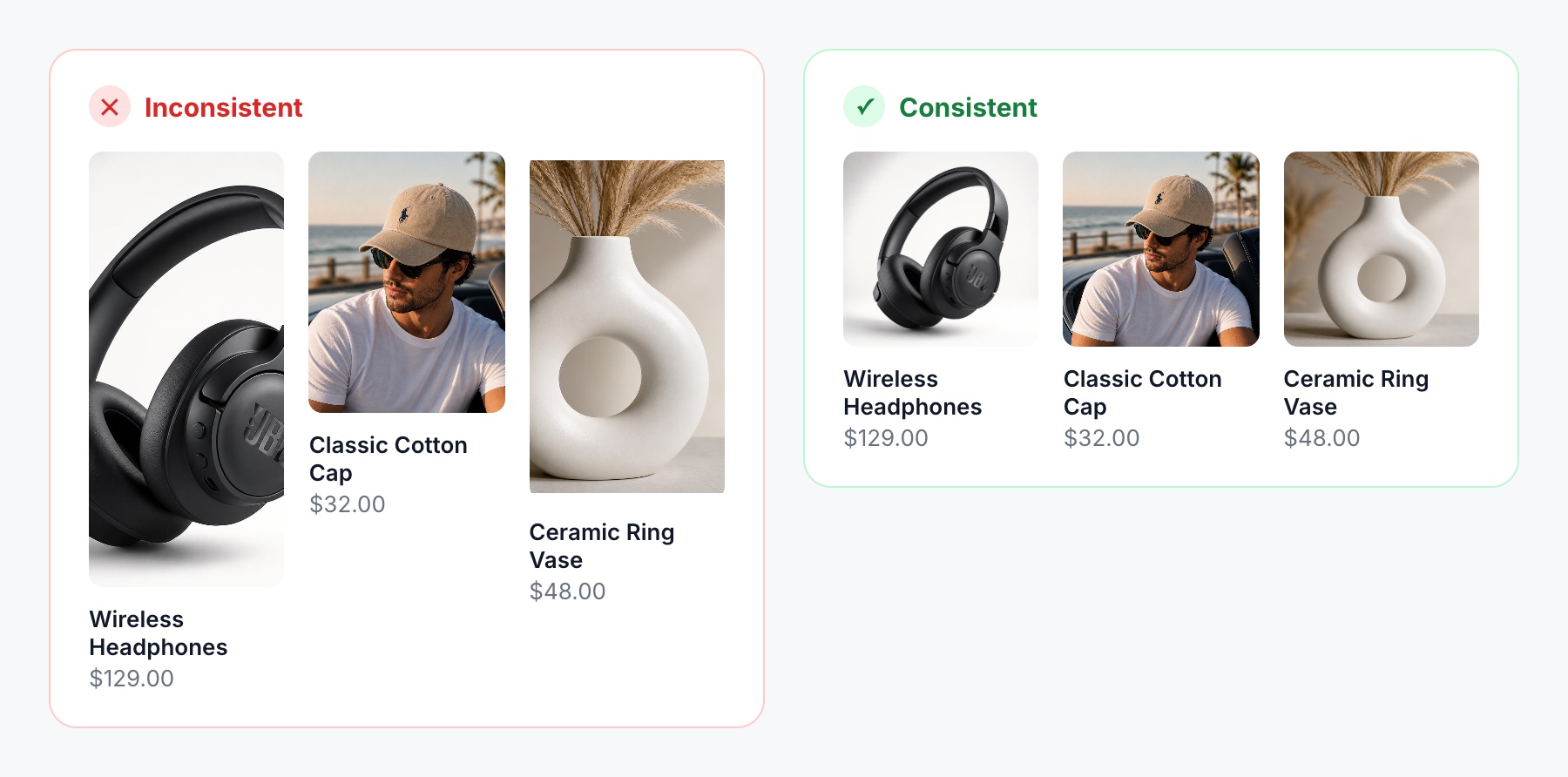
Square images are convenient for product grids because they create a consistent layout.
Portrait images often work better for fashion, where showing the full length of a garment matters.
The most important thing is to choose a ratio that works with your theme and use it consistently.
Mixing different ratios can cause awkward cropping or uneven product thumbnails.
3. Choosing the Right Image Format
Shopify supports JPEG, PNG, WebP, GIF, and HEIC, among other formats.
For most product catalogs, JPEG and PNG are the main formats worth understanding.
JPEG: Best for standard photography
JPEG works well for photographs containing natural colors, shadows, and textures.
Its compression helps keep files relatively small while preserving good visual quality.
For clothing, furniture, accessories, and electronics, JPEG is usually a sensible choice.
PNG: Best for transparency and graphics
PNG supports transparency and lossless compression.
It's useful for logos, diagrams, and graphics that need crisp edges or text.
However, PNG photographs can be considerably larger than comparable JPEG files, so it isn't always the most efficient format for regular product photography.
What about WebP?
WebP can provide good image quality with efficient compression.
Shopify's CDN can automatically serve modern formats, including WebP, to compatible browsers.
That means most merchants don't need to convert every image manually.
Our recommendation: Use high-quality JPEG files for regular product photography, PNG when transparency or graphic detail matters, and let Shopify handle supported delivery optimizations.
4. Image Quality and Store Performance
A high-resolution image isn't automatically a good product image.
Poor lighting, soft focus, inaccurate colors, or distracting reflections can make a 5000-pixel photograph look worse than a well-produced 2048-pixel image.
Before uploading, check whether customers can clearly see the product's shape, materials, and important details.
This is particularly important for glass, jewelry, polished metal, and glossy packaging, where reflections can hide features.
Do larger images slow down Shopify?
Not necessarily.
Shopify automatically generates different image sizes and delivers optimized versions through its CDN.
A properly configured theme can request smaller versions for thumbnails and larger versions when customers need more detail.
Performance problems are more likely when themes or apps request unnecessarily large images, load too many images immediately, or use external images without suitable optimization.
Instead of compressing every photograph aggressively, start with a quality source and test the published page.
If your store is slow, investigate how the theme loads images before sacrificing image quality.
5. Creating a Professional Main Product Image
The first image should make the product immediately recognizable.
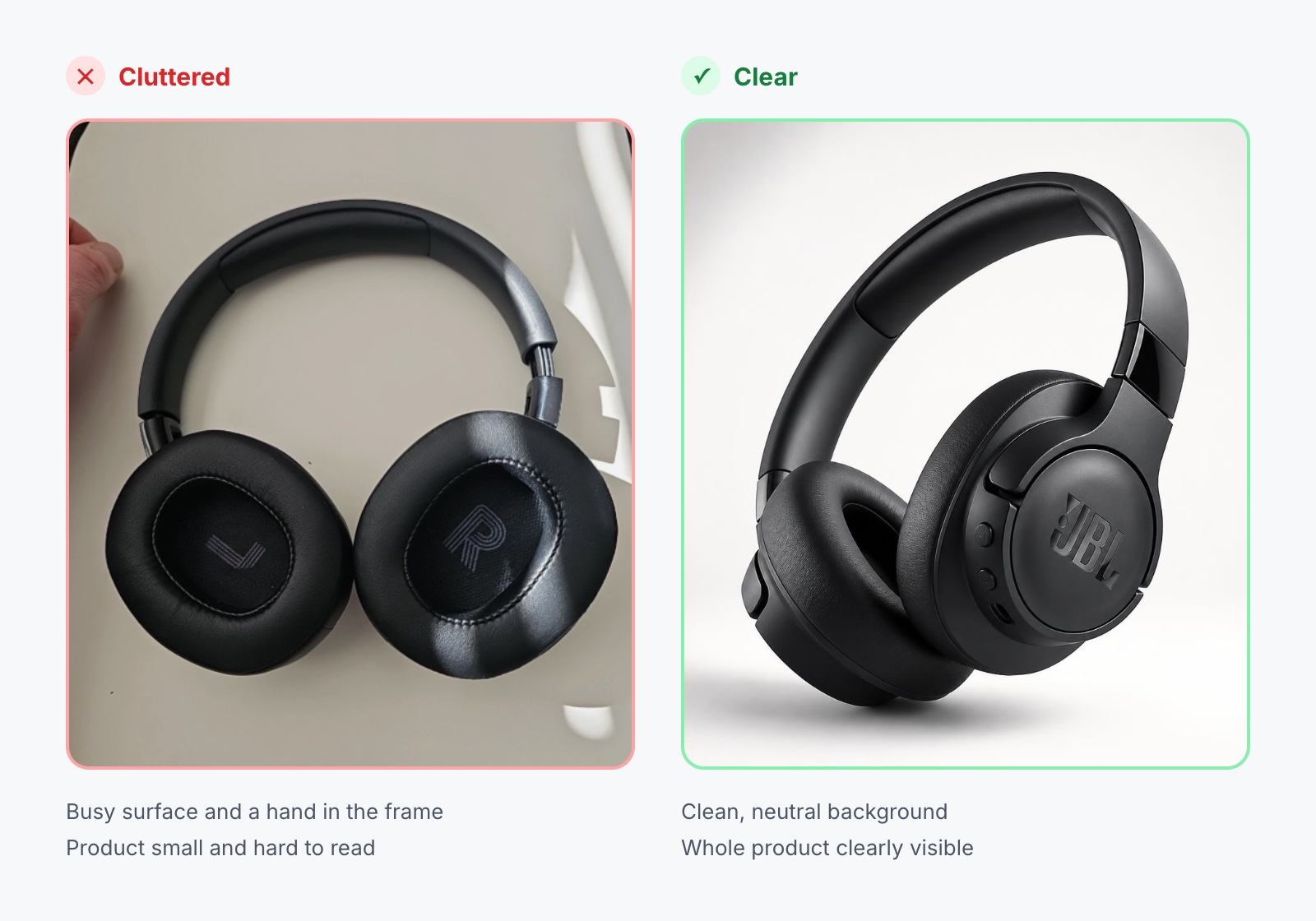
For most products, that means showing the complete item at a useful size, with good lighting and minimal distractions.
A white or neutral background is often effective, but Shopify doesn't require it.
A skincare brand might prefer soft pastel backgrounds, while a furniture store might use styled interiors.
Both can work when the presentation suits the product.
The mistake is making the first image so decorative that customers struggle to identify what they're buying.
Collection thumbnails are often small, particularly on mobile. Excessive text, props, and promotional badges can make them difficult to read.
Keep the main image clear and use the rest of the gallery to explain features and benefits.
6. How Many Product Images Should You Upload?
There's no ideal number for every product.
A basic phone case doesn't need the same visual explanation as a complex appliance or expensive piece of furniture.
Instead of uploading images just to reach a particular number, build a gallery that answers customers' questions.
For many physical products, a useful gallery includes:
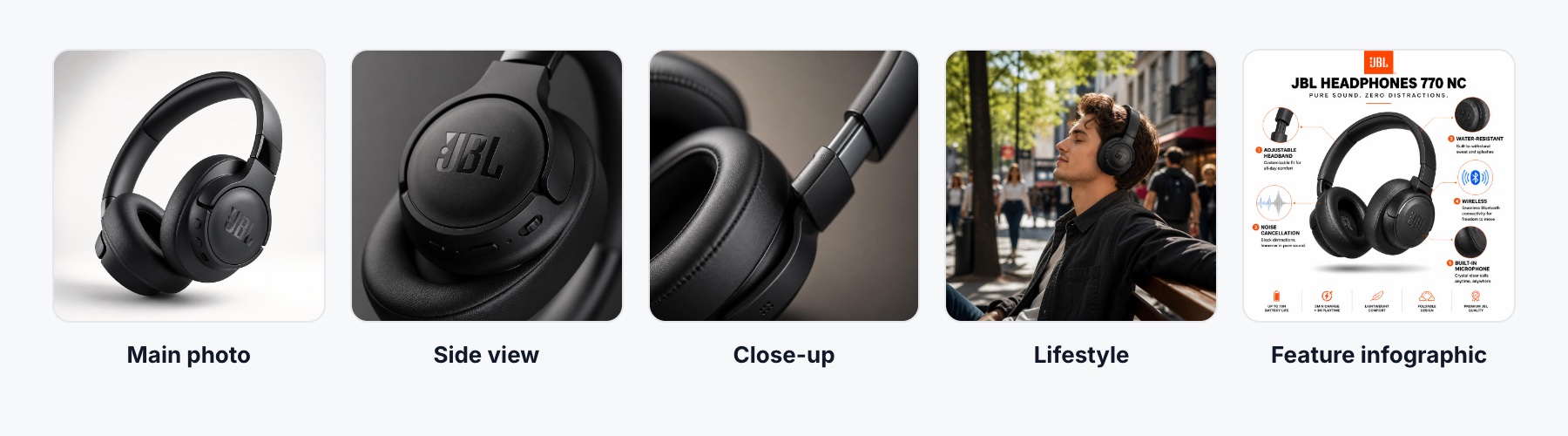
- Main product photo: A clear view of the complete product.
- Alternative angle: The back, side, or another important view.
- Close-up: Materials, stitching, controls, or other details.
- Lifestyle image: The product shown in a realistic setting.
- Dimensions: Measurements or a visual scale reference.
- Feature infographic: A simple explanation of key benefits.
- What's included: Accessories and components customers receive.
Not every product needs all seven.
The goal is to give customers enough information to make a confident decision without filling the gallery with repetitive photographs.
7. Why Consistent Photography Matters
One of the quickest ways to make a Shopify catalog feel disorganized is to mix unrelated photography styles.
Imagine a collection page where one product has a white background, another has a dark studio background, and a third is photographed on a kitchen table.
Each image might look acceptable individually, but together they can make the store feel inconsistent.
Establish a recognizable standard for your main product images:
- Use consistent aspect ratios and framing.
- Keep similar products at comparable visual sizes.
- Maintain a consistent approach to backgrounds.
- Use similar lighting and color correction.
Consistency doesn't mean every photograph must look identical.
Lifestyle scenes can vary, and different product categories may need different compositions.
The important thing is that your catalog looks like it belongs to one brand.
8. Product Photography Mistakes to Avoid
Even small photography mistakes can affect how customers perceive a product.
Low-quality supplier photos
Supplier images may contain outdated packaging, inconsistent backgrounds, or details that don't match the product you're selling.
Inspect them carefully and make sure you have permission to use them.
Inaccurate colors
Overediting can make products look more attractive but less realistic.
This is particularly risky for clothing, cosmetics, furniture, and other products where color influences purchasing decisions.
Repetitive angles
Five photographs taken from almost the same angle don't tell customers much.
Replace repetitive shots with close-ups, dimensions, or useful lifestyle images.
Unreadable infographics
Feature graphics should explain information quickly.
Avoid tiny text, crowded layouts, and excessive claims. Remember that many shoppers will view them on a phone.
Missing scale references
A handbag, lamp, or storage container can be difficult to judge when photographed alone.
Showing the product in use or beside a familiar object can help customers understand its actual size.
9. Shopify Image SEO
Image SEO doesn't require complicated tricks, but a few details are worth getting right.
Use descriptive filenames
Instead of:
IMG_4827.jpg
Use:
black-leather-crossbody-bag-front.jpg
Descriptive filenames provide useful context and make images easier to manage.
Avoid stuffing filenames with repeated keywords.
Write useful alt text
Alt text helps people using screen readers understand images and gives search engines additional context.
For example:
Poor: "Best bag cheap bag Shopify fashion bag"
Better: "Black leather crossbody bag with adjustable shoulder strap"
Shopify supports alt text up to 512 characters and recommends keeping descriptions around 125 characters or fewer.
Describe what's actually visible rather than repeating the same keywords across every image.
Image SEO is useful, but it won't replace clear product titles, helpful descriptions, and a well-organized store.
10. Using AI-Generated Product Images on Shopify
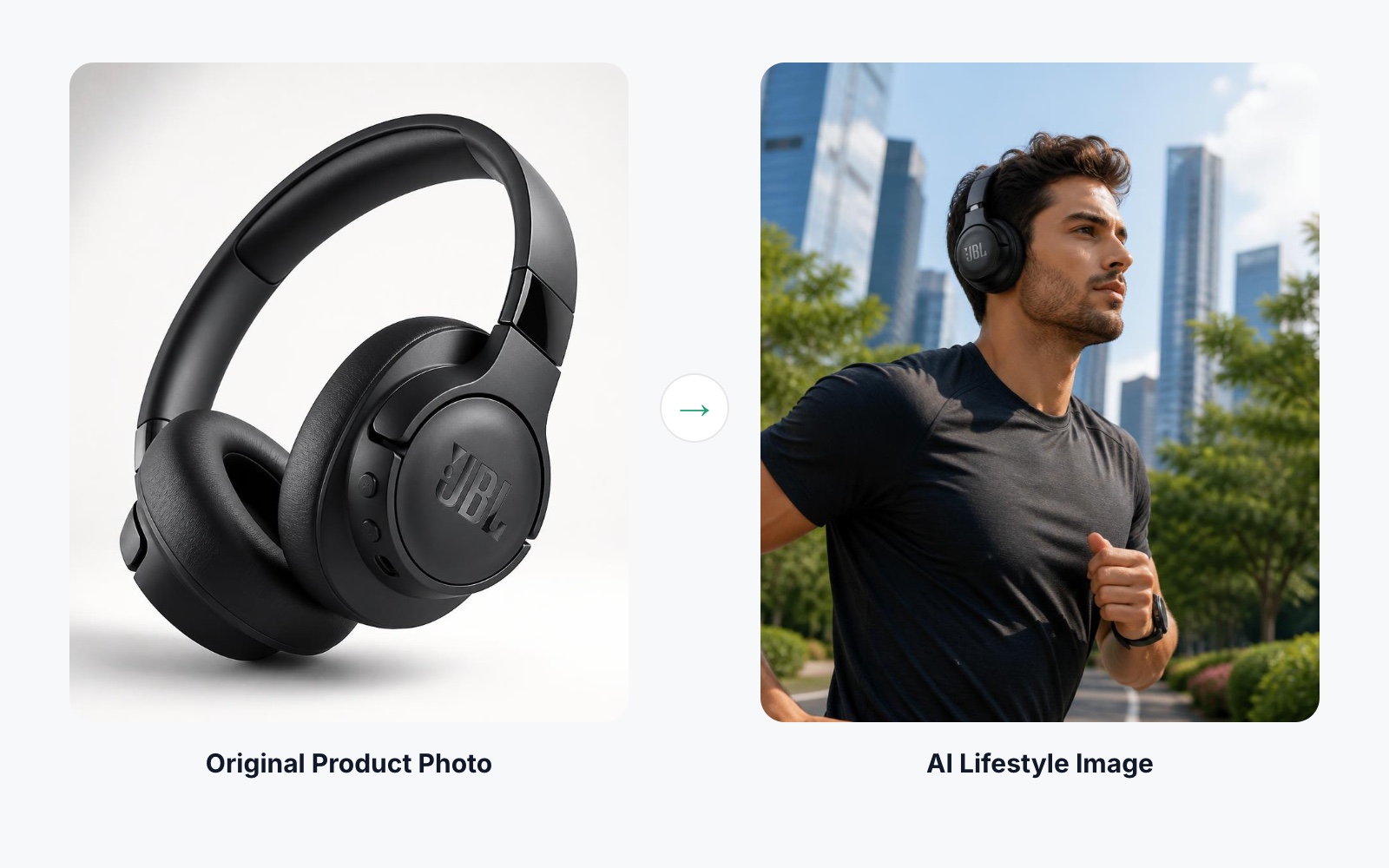
AI-generated photography can help Shopify merchants create lifestyle scenes, supporting graphics, and more consistent product galleries.
For example, a seller with a clear photograph of a desk lamp might want to show it in a home office, bedroom, and reading corner.
Traditionally, creating those scenes could require different locations, props, and lighting setups.
AI can make that process more accessible.
But there's a difference between generating an attractive image and generating an accurate product image.
AI tools sometimes change product details without making the changes obvious.
A handbag might gain an extra zipper. A watch might display incorrect markings. A bottle label might change.
These details matter because customers expect to receive the product shown in the listing.
Before publishing AI-generated images, check the product's shape, proportions, colors, materials, labels, and accessories against the original.
Creating complete image sets with AI
Generating one attractive product image is relatively easy. Creating a consistent gallery with different angles, lifestyle scenes, and supporting graphics requires more coordination.
That's one of the challenges we're addressing with ListingSet.
ListingSet helps ecommerce sellers generate complete AI-powered product image sets, including main product images, lifestyle scenes, and supporting listing visuals.
Rather than creating every image separately, sellers can work toward a consistent visual presentation across their product listings.
As with any AI workflow, generated images should be reviewed for product accuracy before publishing.
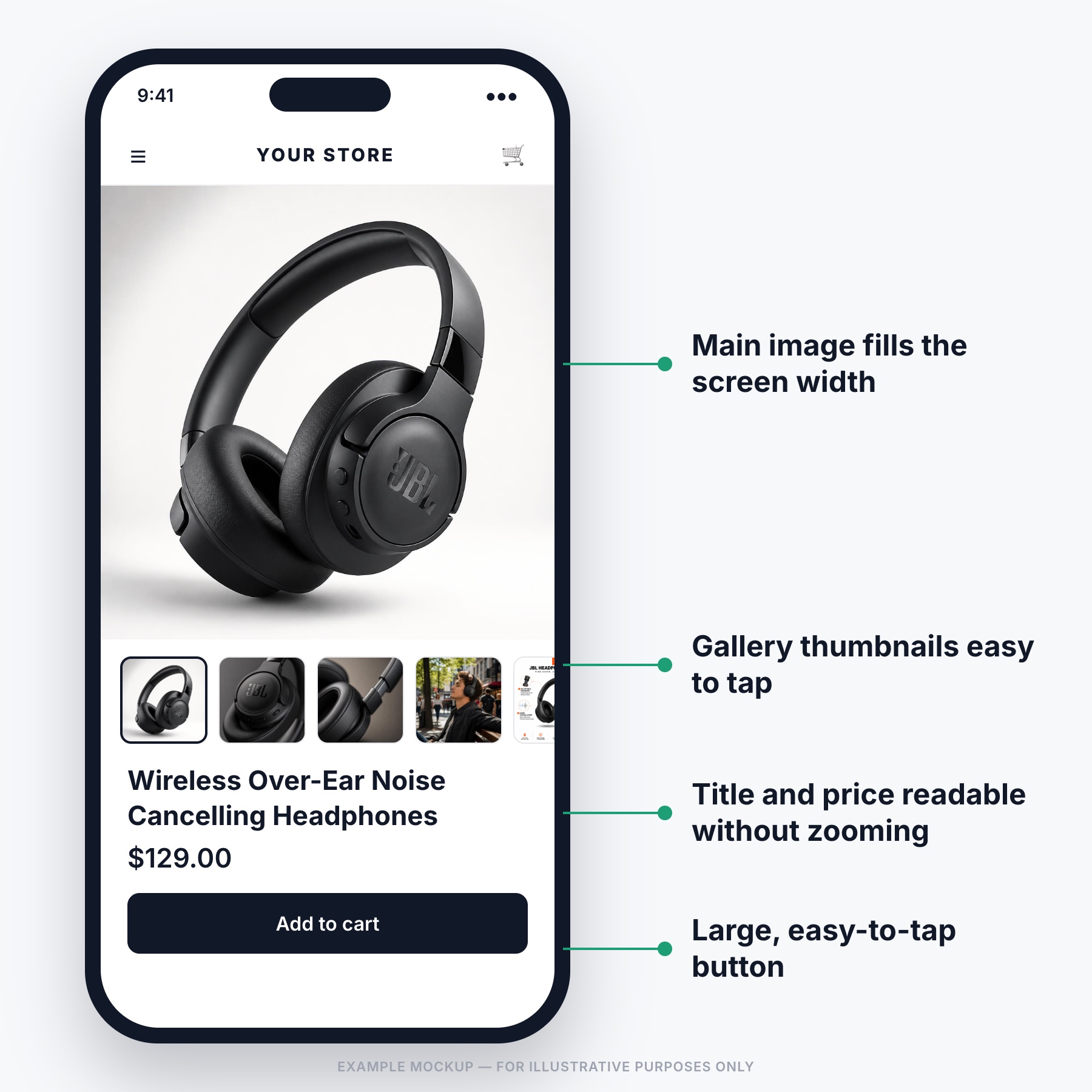
11. Don't Forget Mobile Shoppers
A photograph that looks excellent on a desktop monitor may not work nearly as well on a phone.
Small text becomes difficult to read, products can appear too small, and theme cropping may hide important details.
Before publishing, open the actual product page on a mobile device.
Check the main image, gallery navigation, zoom behavior, and any text included inside images.
Also review how products appear on collection pages.
If customers need to zoom in just to understand what they're looking at, the image may need better framing or a clearer composition.
12. Shopify Product Image Checklist
Before publishing a product, make sure:
- Images have appropriate dimensions and consistent aspect ratios.
- The main image clearly shows the product.
- Photographs are sharp, well-lit, and color-accurate.
- Each gallery image adds useful information.
- Customers can understand the product's size and important features.
- Infographic text is readable on mobile.
- Your theme delivers appropriately sized images.
- Filenames and alt text are descriptive.
- AI-generated images accurately represent the product.
- The product page looks good on both desktop and mobile.
You don't need an elaborate photography setup to get these basics right.
You need a repeatable process and a clear understanding of what customers want to see.
Final Thoughts
Shopify gives merchants more freedom over product photography than traditional marketplaces, but that doesn't make image quality any less important.
In fact, when you control the entire storefront experience, consistency and presentation become your responsibility.
The goal isn't to upload the largest images Shopify allows or fill every gallery with as many photos as possible.
It's to choose appropriate dimensions, maintain accurate product photography, and show customers the details they need to make informed decisions.
Start with clear, high-quality images. Build galleries that answer real questions. Keep your catalog visually consistent and check how everything looks on mobile.
And if you're using AI to speed up image creation, make product accuracy part of the process.
Good product photography doesn't need to be complicated. It needs to help customers understand what they're buying.